Set up your first server
Choose a game and follow the setup steps. Tavern checks the files and tools it needs, and tells you what to fix if something is missing. Already hosting? Review an existing server and bring over a managed copy.

Your servers. Your Tavern.
Host dedicated game servers on your own PC. Tavern guides you through setup, keeps server controls together, and helps you back up your worlds.
Less server admin. More game night.
Someone in the group usually ends up running the server. Tavern is for that person. It guides you through setup, explains what needs attention, and puts everyday controls within reach. You can learn as you go, or bring the servers you already know your way around.
Choose a game and follow the setup steps. Tavern checks the files and tools it needs, and tells you what to fix if something is missing. Already hosting? Review an existing server and bring over a managed copy.
Start, stop, restart, update, and see connection details without juggling terminals, scripts, or scattered configuration files.
Back up your world and restore it when you need to. Activity history and diagnostics help you work out what happened when a server stops behaving.
Adventure starts here
Pick a game your group loves. Tavern helps you get a server running on your PC, ready for everyone to join.
Start fresh with guided setup, or bring a server you already run. You choose where its files and worlds live.
Tavern checks the files and tools your game needs, then helps you choose how friends will connect. If something needs attention, you can see it before inviting everyone.
Start the server, share the join details, and bring your friends along. Keep your PC on while they're playing; the server controls are there when you need them.
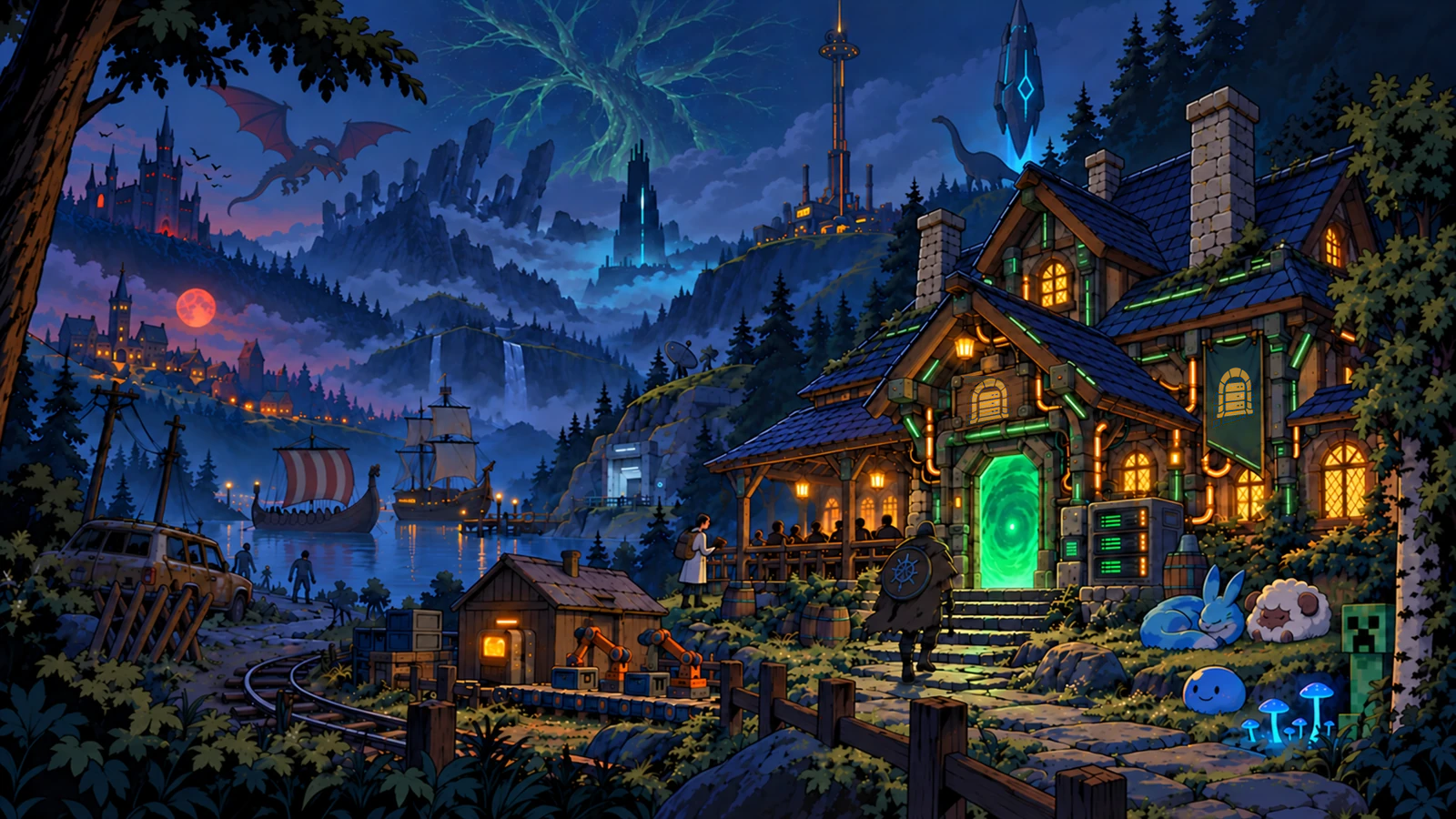
From the Tavern wallpaper collection
After setup
Updates, connection problems, a world you need to restore. The work doesn't end after the first install. These are the tools Tavern keeps together.
Your PC is the host. Tavern runs on your hardware; it isn't a cloud hosting service. You don't need a Tavern account. Playit and Discord are optional.
Start, stop, restart, update, or reinstall. Follow progress in the app.
Check server files, required tools, and network settings before inviting friends.
Create a backup or restore an earlier one. Choose where your worlds and backups are stored.
Connect over a local network, configure direct access, or use Playit to avoid router setup.
Connect Discord to give your group server controls and activity updates for each game.
See diagnostics in the app and export a sanitized support bundle if you need help.
The road ahead
Tavern is still in private testing, with the first games on the board. Right now, we're putting setup and recovery through their paces on real home PCs. There's room for more, and early hosts will help shape what belongs here next.
We're testing installation, backups, restores, and upgrades on Windows. The alpha helps us find problems that don't show up on our own machines.
Let early game nights shape what we improve. That starts with support for the games already here and the setup steps that still leave people stuck.
More games are only part of where we'd like to go. We want Tavern to become a home for the tools and communities that make hosting worth it. Which paths we take will grow out of how people use it.
Some paths are still taking shape. We'll share firmer plans as testing and community feedback guide the next steps.
Give the full workspace its own window. On your phone, turn to landscape for the best view.
Open interactive demo Explore the next-build dashboard, Game Config and shared consoles.Pull up a chair
A few things worth knowing
Tavern is a Windows game server manager for friend groups. It helps you set up and run dedicated game servers on your own PC, manage game settings, and back up your worlds. Tavern is currently in alpha testing.
That is exactly who Tavern is for. You choose a game and Tavern guides you through the setup, checks the important pieces, and explains the decisions along the way. Experienced hosts can still bring existing servers and use the deeper controls they expect.
Tavern is Windows-first and currently targets Windows 10 and 11 on x64 PCs. The game servers run on your own computer; Tavern is not a cloud-hosting service.
The game catalog lists the adapters currently in testing, including Minecraft Java Edition, Palworld, Valheim, and Satisfactory. Support varies by game. Minecraft Bedrock Edition is not currently included.
No. Tavern keeps normal server operation local and does not require a Tavern account. Playit and Discord are optional and use their own accounts when enabled.
Tavern is designed to preserve saves, backups, configuration, and runtime state through updates. Game installations, saves, and backups remain in the locations selected by the server owner.
Choose the route that fits your group: local network, direct connect through your router and firewall, or an optional Playit quick-connect setup that avoids router configuration.
The Tavern post
Leave a note at the window.
Our raven knows the way.
Tavern is in private beta. The Windows installer is still being validated; public downloads will open here when it is ready.
Private beta · validation in progress